Features
Every tool, and what it is for
CAN Commander's firmware has twelve tools. Each one is available from the Flipper Zero app and from the USB and Wi-Fi command line. This page describes them in the order you would typically reach for them.
Monitor & Discovery
See what is on the bus, then narrow it down to the message, byte and bit that matter.
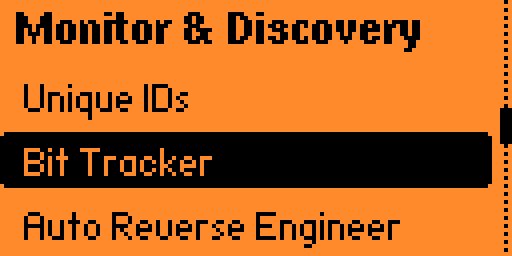
Auto Reverse Engineer
reverseLearns the bus's background noise, then shows only the IDs and bytes that change when you perform an action.
Two phases. During calibration you leave the vehicle alone while the tool records every byte that changes by itself and blacklists it. During monitoring you perform the action you want to find (press a button, open a window) and only bytes that were stable during calibration are reported.
On the Flipper, highlight a candidate ID and press Right to open it in Bit Tracker, or Left to open it in Replay, with the bus and ID already filled in.
- Up to 256 IDs per bus
- Read mode for a single ID
- exclude_pre filters early changes
tool start reverse bus=can0 calibration_ms=10000 monitor_ms=20000Bit Tracker
bittrackAn 8-byte bit grid for one ID that shows exactly which bits flip as you operate the vehicle.
Once you know which message carries an action, Bit Tracker shows its payload bit by bit and marks the bits that change. It is the tool you use to pin a signal to its exact position in the frame.
- Standard and extended IDs
- Each bus tracked separately
tool start bittrack bus=can0 id=273Value Tracker
valtrackByte-by-byte value changes with running minimum and maximum for one message stream.
Useful for analogue-looking signals where you do not have a decode yet: watch a byte sweep as you turn a wheel or press a pedal, and read off its range.
- Min, max or both
- Lock to an ID or follow a bus filter
tool start valtrack bus=can0 id=1D5Read All Frames
read_allStreams every frame on one or both buses, with frame detail, recent-frame and statistics views.
The first thing to run on an unfamiliar bus: confirm traffic is present and the bitrate is right. The Flipper dashboard pauses rendering above roughly 1,000 frames per second and tells you to filter.
- One bus or both
- Optional ASCII view
tool start read_all bus=both ascii=0Filter & Read Frames
filteredStreams only frames that match an ID mask and filter, for isolating one ECU or message family.
Frames pass when (id & mask) == (filter & mask). Standard and extended IDs can be matched separately.
- Mask/filter matching
- Standard or extended
tool start filtered bus=can0 mask=7FF filter=273 ext_match=0 ascii=0Unique IDs
unique_idsCounts and lists every CAN ID seen on the bus.
A quick inventory of what is talking. Standard and extended IDs, and each bus, are tracked separately.
- Up to 512 entries
- Snapshot on demand
tool start unique_ids bus=bothCAN Speed Test
speedReports messages per second for throughput checks and bus-load comparisons.
Samples once per second and keeps a short history, so you can compare bus load between vehicle states.
tool start speed bus=can0Control & Injection
Transmit on the bus: raw frames, modified copies of live frames, or a recorded sequence played back with its original timing.
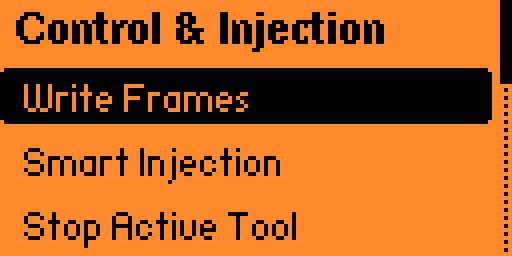
Smart Injection
custom_injectFive slots that track the latest live frame for an ID and resend it with only your chosen bits, bytes or fields changed.
Most vehicle messages carry several signals at once. Sending a hand-built frame overwrites all of them. Smart Injection keeps the most recent frame it has seen for each slot and applies your change on top of it, so every other signal in the message goes out exactly as the vehicle last sent it.
Changes can be set as a single bit, a multi-bit field, or a byte mask with value and XOR. Slots can be gated on a multiplexer value so they only track the right variant of a multiplexed message. Slot sets are saved as .injprof profiles; build them from a DBC file with the profile generator.
- 5 slots per profile
- Bit, field and byte-mask edits
- Multiplexed messages
- Burst count and interval
tool start custom_inject bus=can0
tool config cmd=add slot=1 id=1D5 ext=0 name=throttle
tool config cmd=bit slot=1 bit=10 value=1
inject slot=1 count=5 interval_ms=100
Replay
replayRecords one ID and plays the sequence back with the original inter-frame timing.
For actions where timing matters more than bit-level control, such as a held button or a short handshake. Each frame is timestamped in microseconds when it is captured, and playback follows that timeline.
On the Flipper you set a loop count from 1 to 99. From the command line you can also change playback speed.
- 384-frame buffer
- 1 to 99 loops on Flipper
- 10% to 1000% speed from the CLI
tool start replay bus=can0 id=2C1
tool config cmd=record
tool config cmd=stop
tool config cmd=replay count=3 speed=200
Write Frames
writeSends a frame once, in a burst, or periodically until stopped.
Direct transmission of a payload you specify: standard or extended ID, 0 to 8 data bytes, optional remote frame. Press OK on the Flipper dashboard to resend.
- One-shot, burst or periodic
- Standard and extended IDs
tool start write bus=can0 id=1D5 dlc=8 data=102030AABBCCDDEEVehicle Diagnostics
Standard OBD-II over CAN, without needing to know anything about the vehicle's own messages.
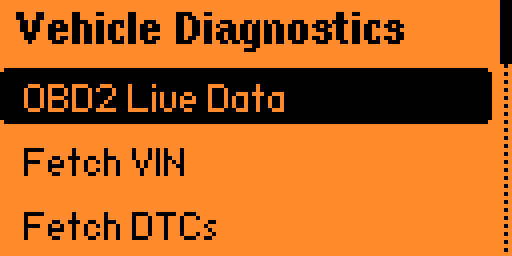
OBD-II Live Data
obd_pidPolls Mode 01 PIDs: RPM, speed, coolant temperature, throttle, load, fuel level and more, or any PID by number.
Named PIDs are rpm, speed, coolant, throttle, load, fuel, iat, baro and odometer. Any other PID can be requested by its hex number. The poll interval and request ID are adjustable.
- Poll interval from 10 ms
- Functional or physical addressing
tool start obd_pid bus=can0 pid=rpm interval_ms=200Fetch VIN
obd_pid pid=vinReads the vehicle identification number from the ECU.
A one-shot request. Use req_id=7E0 for ECUs and simulators that need physical addressing.
tool start obd_pid bus=can0 pid=vinFetch and Clear DTCs
obd_pid pid=dtcReads stored, pending and permanent trouble codes from every responding module, and clears them.
Requests go out on the functional ID, and responses from each ECU are collected and reassembled separately. Clearing codes also turns off the check engine light.
- Stored, pending, permanent
- All responding ECUs
tool start obd_pid bus=can0 pid=dtc_allDBC & Databases
Turn raw frames into named engineering values using signal definitions from a DBC file.
DBC Decode
dbc_decodeDecodes live frames into scaled values: Intel and Motorola byte order, signed values, factor and offset, multiplexed signals.
On the Flipper, each signal gets its own dashboard page plus an overview of all signals, with raw values mapped to labels where the DBC defines them.
From the command line, signal descriptors are added with the dbc command and decoded values stream as text.
- 128 signal descriptors in firmware
- 16 signals per Flipper profile
- 16 value labels per signal
dbc add bus=can0 id=1D5 ext=0 start=0 len=16 order=intel sign=u factor=0.1 offset=0 min=0 max=6553.5 unit=kph sid=1
tool start dbc_decode bus=can0
Decoding Profiles
.dbcprofCurated signal sets stored on the Flipper's SD card. Load one and decoding starts immediately.
A full DBC file can describe thousands of signals. A profile holds the handful you care about. Build one from a .dbc file with the profile generator on this site, or edit signals directly on the Flipper with the DBC Database Manager.
Interfaces
The firmware does the CAN work. These are the ways to drive it.
Primary interface
Flipper Zero app
Menus and a live dashboard for every tool, an on-device editor for tool arguments, and profiles stored on the SD card. The app powers the board from the Flipper and checks the firmware version when it connects.
Laptop
USB command line
Plain text commands with key=value arguments over USB serial at 115200 baud. Values are validated strictly, so a typo is rejected instead of quietly doing something else.
Wireless
Wi-Fi command line
The board can host a Wi-Fi access point and serve the same command line over raw TCP on port 7777. It is off until you start it; set your own password first.
Limits worth knowing
The numbers below are from the current release (firmware v2.3, Flipper app v2.3.1).
| Item | Limit |
|---|---|
| Active tools | One at a time. Starting a tool stops the previous one. |
| Frame format | Classic CAN, 11-bit and 29-bit IDs, 0 to 8 data bytes. |
| Bitrates (CAN0) | 25 kbit/s to 1 Mbit/s including 33.3k and 83.3k; down to 5 kbit/s on ESP32-S3. |
| Smart Injection | 5 slots per profile; any number of profiles. |
| Replay | 384 frames of one ID per recording. |
| DBC decoding | 128 signal descriptors in firmware; 16 signals per Flipper profile. |
| Auto Reverse Engineer | 256 IDs per bus tracked; 10 changed IDs shown on the Flipper dashboard. |
| Unique IDs | 512 entries. |
| Wi-Fi command line | One client at a time. |
The full command syntax for every tool is in the firmware reference.